Assets
Importing assets
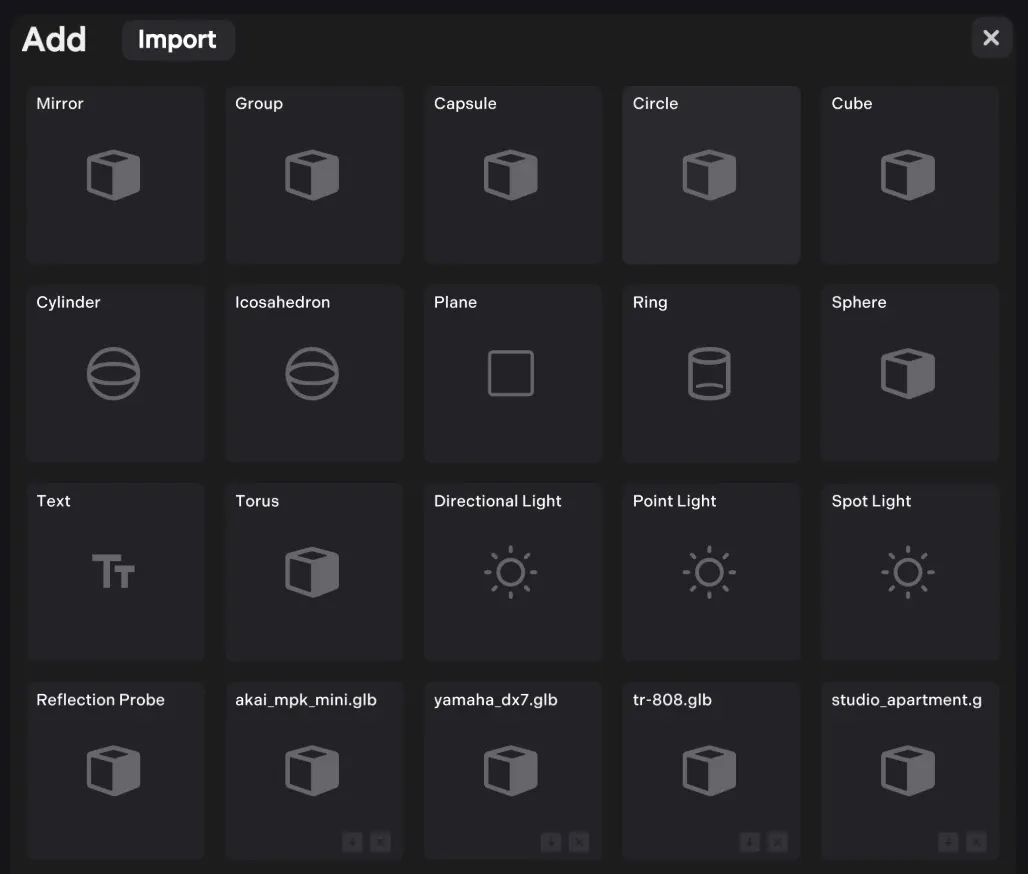
To import assets, you can drag and drop files, or click import at: Editor -> + -> import
// or at runtime use:
const upload = await world.storage.set(arrayBuffer)
console.log(upload.status, upload.key)
Runtime storage and local project mirrors
Imported Unia assets are stored locally in browser IndexedDB and synchronized
with cloud-backed storage. The editor can therefore load an uploaded asset by
its registered filename even when no corresponding file is present under a
local unia_data/<project>/models/, audio/, or images/ directory.
Optimisation
-
Option texture streaming (split textures and dynamically load) - useful for giant scenes.
-
Textures are converted to WEBP on import
-
Assets are stored/served on a low latency global network. For more info see storage.
-
Downloaded assets are cached locally, so scenes reload quickly.
Supported formats
- Models: GLB and VRM (Use Blender to export if you use FBX or USDZ)
- Audio: MP3, OGG/Vorbis, WAV
- Textures: WEBP, SVG, JPG, PNG etc
Duplicate files and filename aliases
Assets are stored by a deterministic hash of their contents. If byte-identical files are imported under different filenames, Unia stores the data once and records the additional filenames as aliases. Scripts may reference either the original filename or any alias.
Blender Export
Blender is recommended for creating/exporting 3d assets with Unia
Blender VRM
BlenderVRM is the best for creating or converting avatars to VRM.
Unity Export
There a few options for exporting from Unity, none are perfect. Recommended: Needle Engine, glTFast or the Unity FBX/GLTF exporter.
UniVRM
UniVRM is great for for exporting avatars from Unity. VRM 0.0 is recommended over 1.0, though both are supported.